
Giving Portal User Guide
Quick Links
Tip: Click any screenshot to enlarge it.
First Time Activation
Before logging in for the first time, your account must be activated.
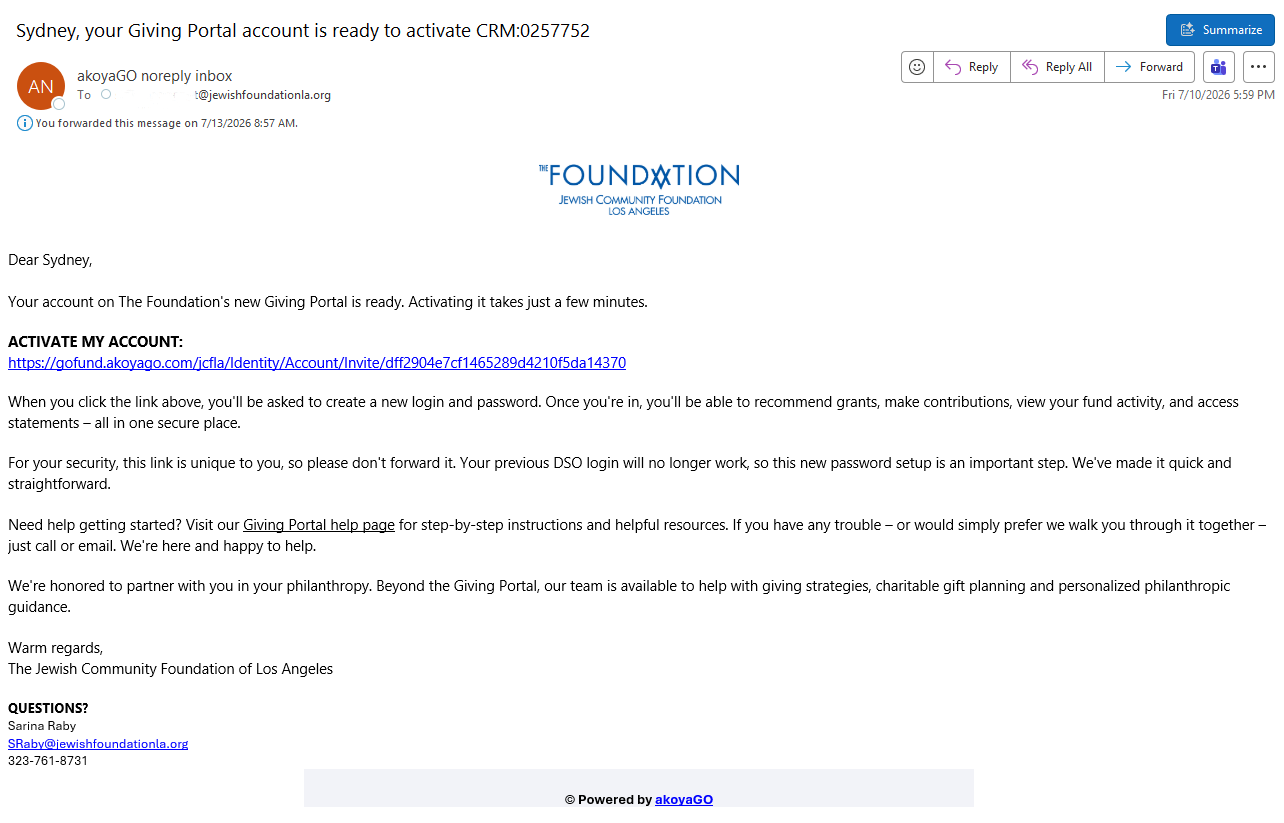
- You will receive a system-generated email invitation from notifications.noreply@jewishfoundationla.org, with a custom invitation link. Look for a personalized subject line letting you know your Giving Portal account is ready to activate. Click the unique link in the email to set up your account.
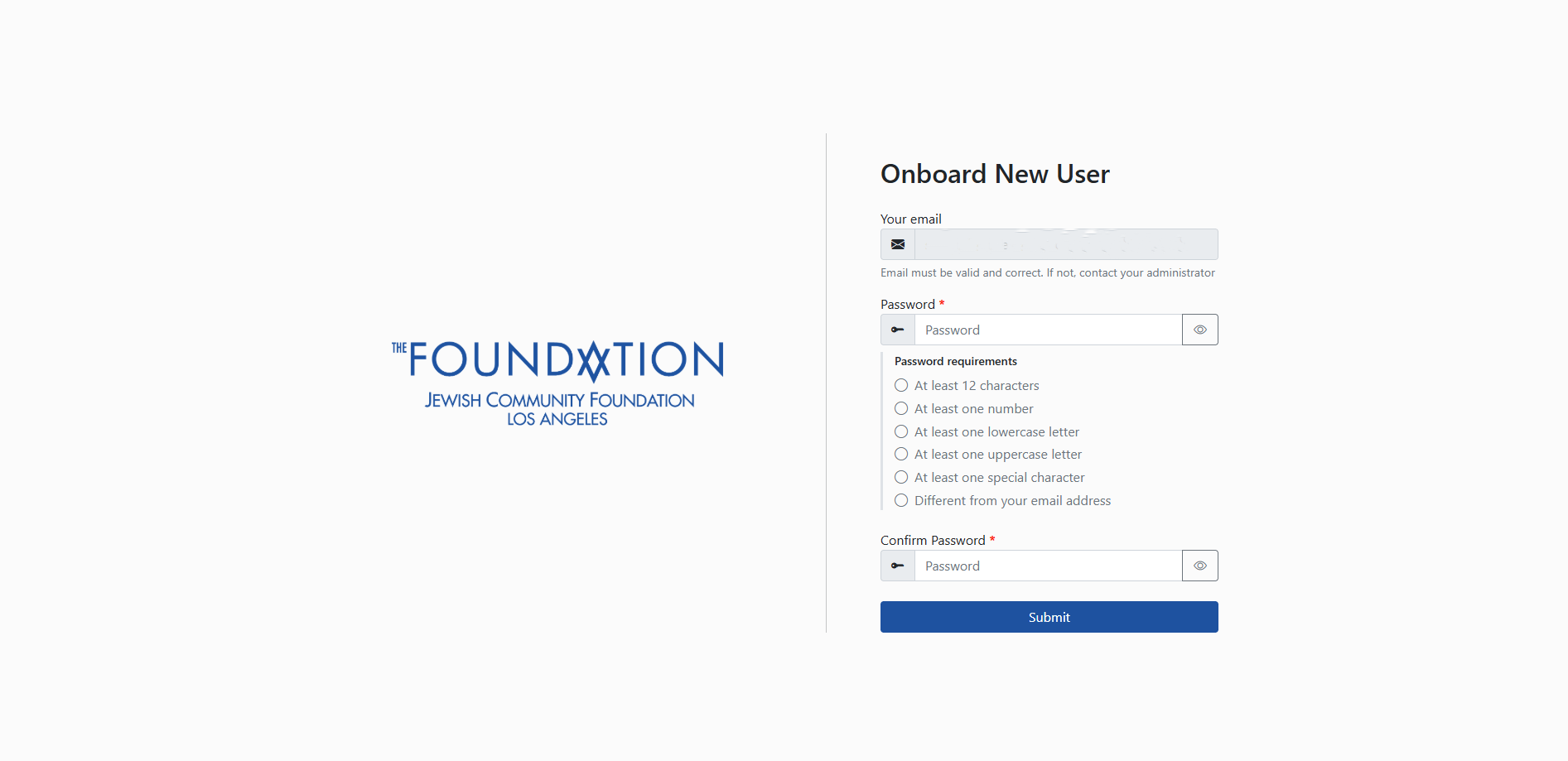
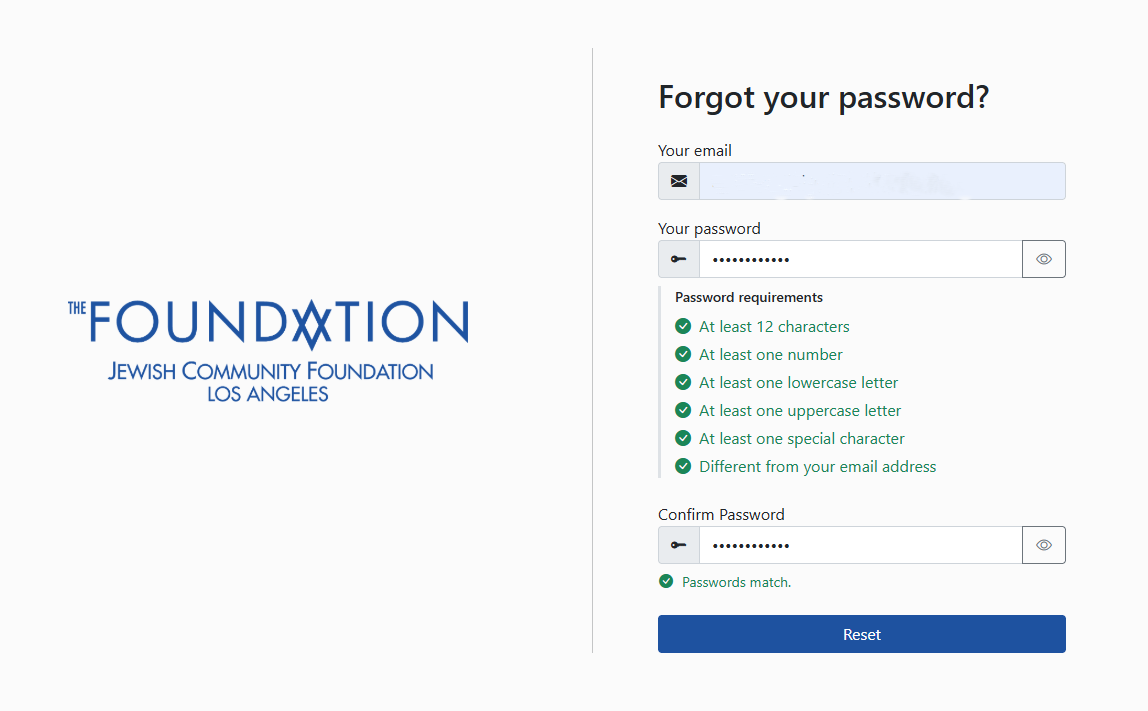
- Enter the email address that the activation email was sent to. This is the primary email address that The Foundation has for you. Passwords must have at least 12 characters, at least one number, at least one lower case letter, at least one upper case letter, at least one special character, and be different from your email address. Please write down your password or save it in a secure place. For security reasons, The Foundation will not have access to your password.
Each user has their own Giving Portal login. If multiple people have access to the same fund, each person must activate their own account using their own activation email.
Please reach out to Jessica Duffaut at JDuffaut@jewishfoundationla.org
or if you did not receive your email or need any other assistance.
Login (Returning Users)
The Giving Portal can be accessed online at https://gofund.akoyago.com/jcfla/.
A direct link to the Giving Portal is also available in the upper right corner of www.jewishfoundationla.org. We recommend bookmarking this page for quick access.
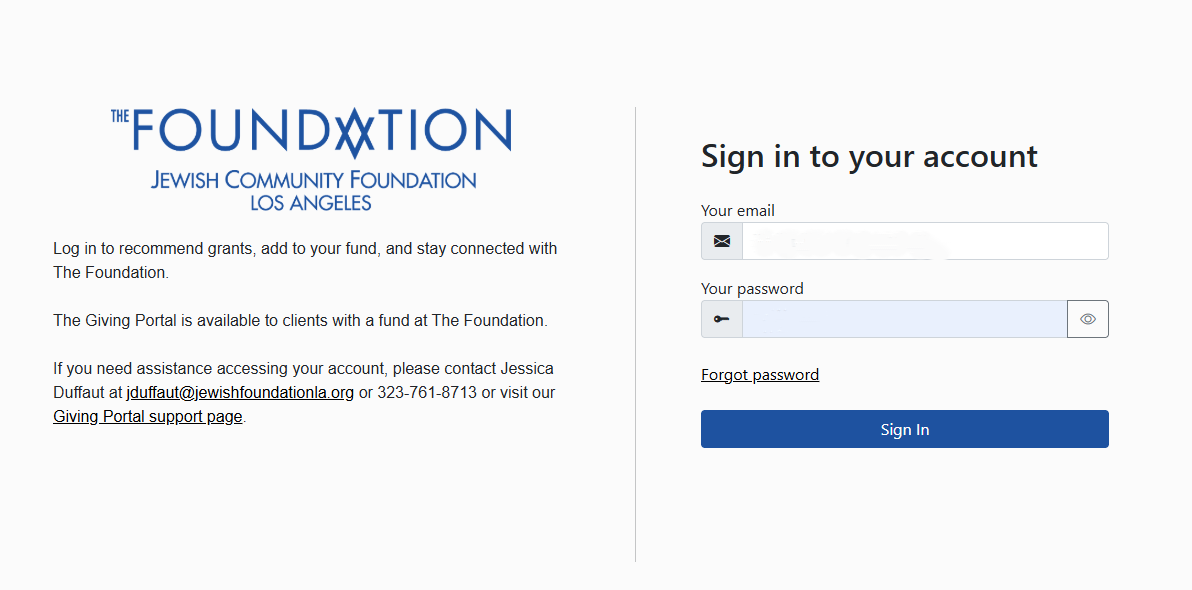
- Log in with your email address and password.
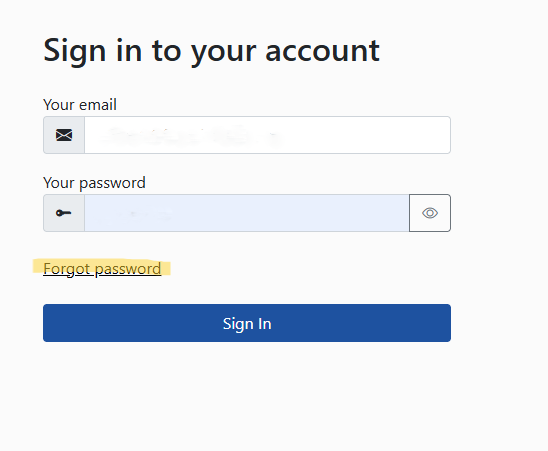
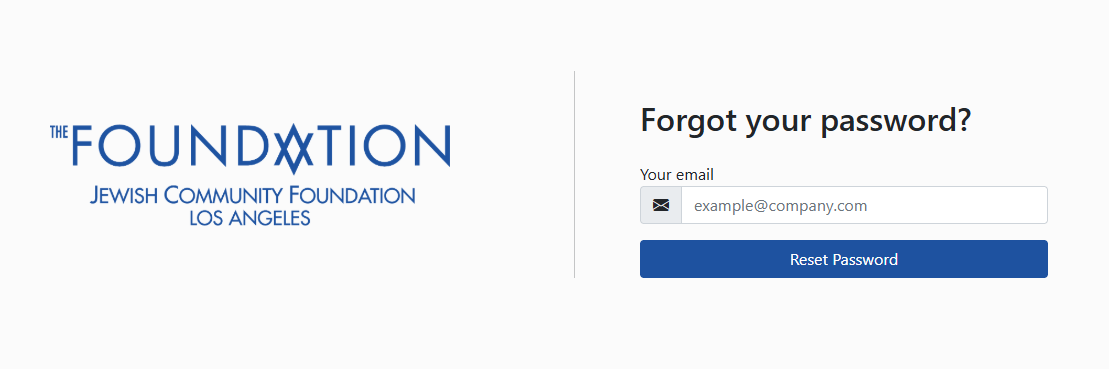
- If you forget your password, you can click Forgot Password. Enter your email and click Reset Password.
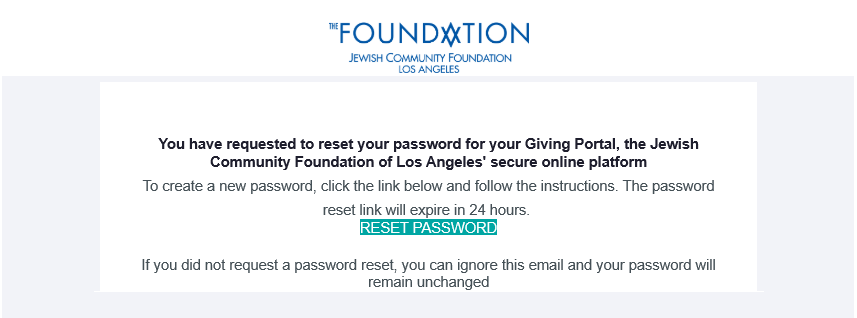
- You will receive instructions on how to reset your password.
Reset Password
From the Giving Portal login page, select Forgot Password? and enter your email address. You will receive an email with instructions to reset your password.
Passwords must have at least 12 characters, at least one number, at least one lower case letter, at least one upper case letter, at least one special character, and be different from your email address.
For security reasons, The Foundation does not have access to client passwords and cannot reset passwords on a client’s behalf. If you need help, please contact us and we will be glad to walk you through the reset process.
How to Navigate Your Giving Portal
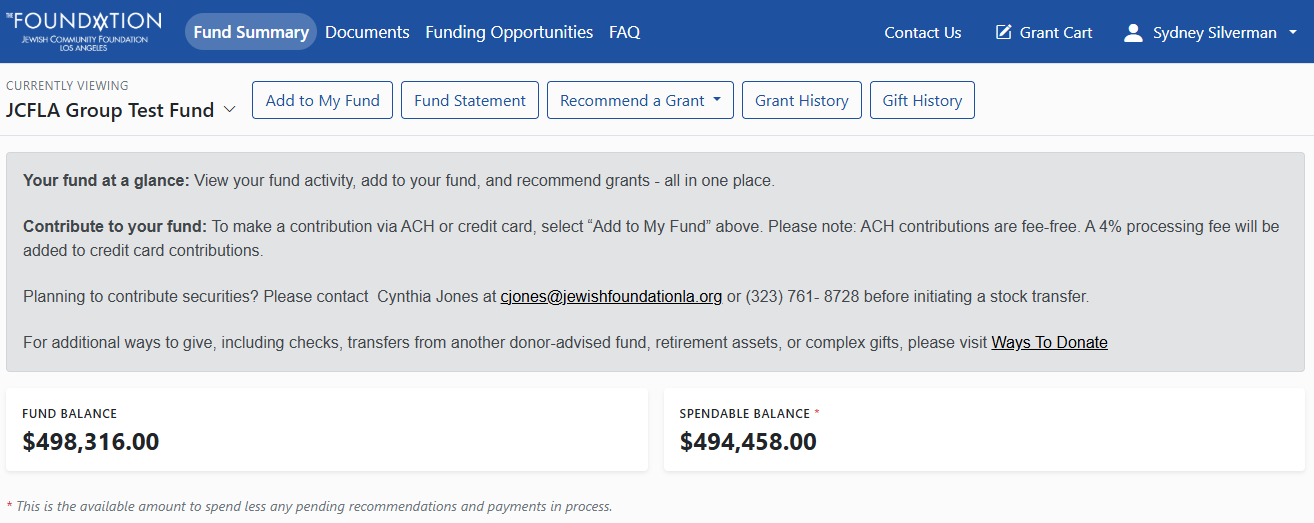
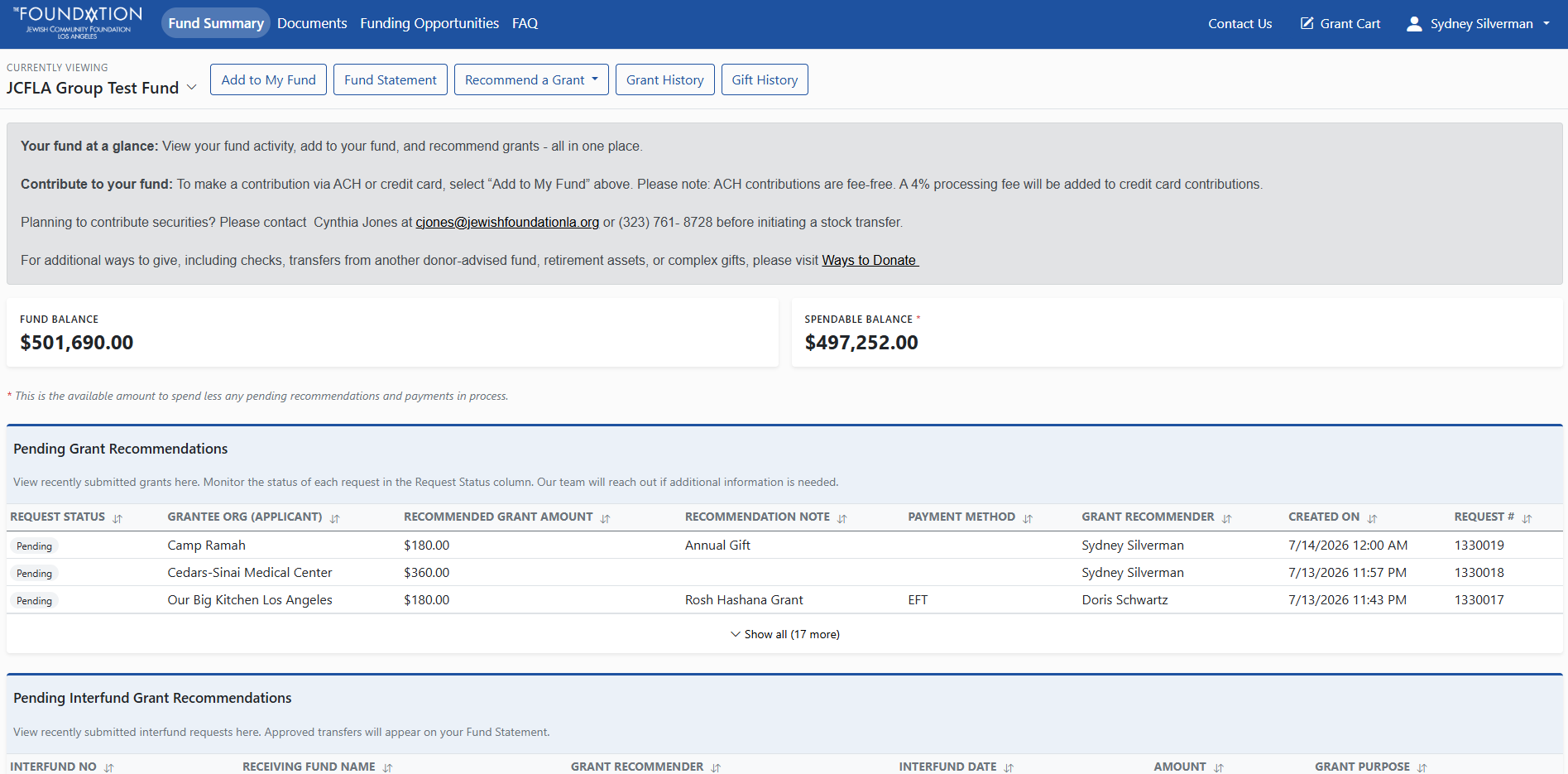
When you log into the Giving Portal, you will be directed to your Fund Summary. The top navigation bar includes Fund Summary, Documents, Funding Opportunities, and FAQ. On the right side of the page, you will also see Contact Us, Grant Cart, and your profile.
Within Fund Summary, you will see a second navigation bar with fund-specific options: Add to My Fund, Fund Statement, Recommend a Grant, Grant History, and Gift History. These options apply to the fund currently displayed.
How to select your fund
The fund you are currently viewing appears in the upper left corner of the Fund Summary page. If you have access to more than one fund, use the dropdown to select the fund you want to view.
Please confirm that the correct fund is selected before adding to your fund, viewing your fund statement, recommending a grant, or reviewing grant and gift history.
Fund Summary
Your fund summary is an overview of your fund activity, including your current fund balance. You can view your pending grant or interfund recommendations, most recent grants and contributions or your scheduled multi-year grant distributions.
Add to My Fund
Clients may make tax-deductible contributions to their funds through the Giving Portal by credit card or ACH bank transfer.
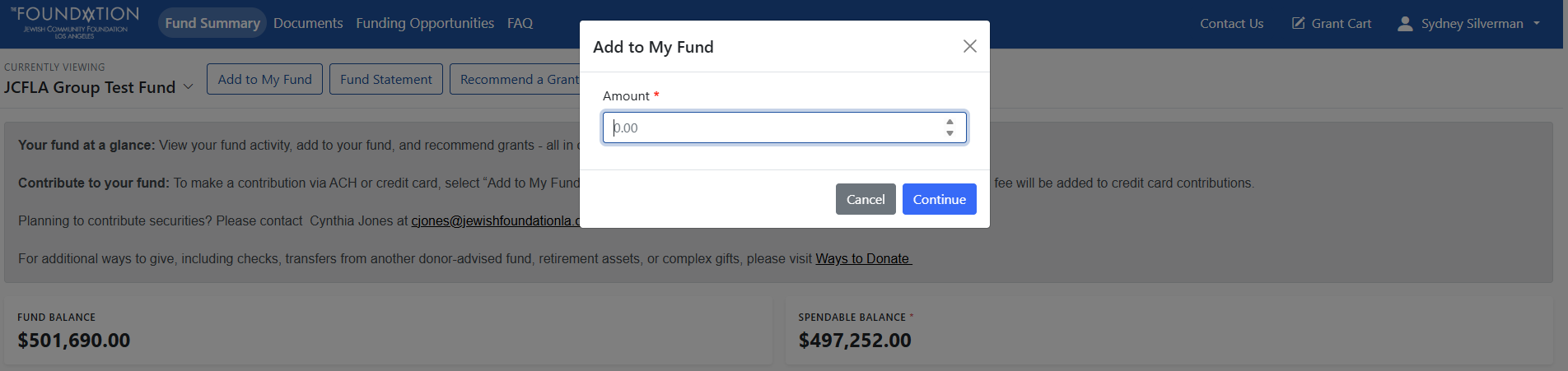
- From the top of the page, click Add to My Fund. You will be prompted to enter an amount.
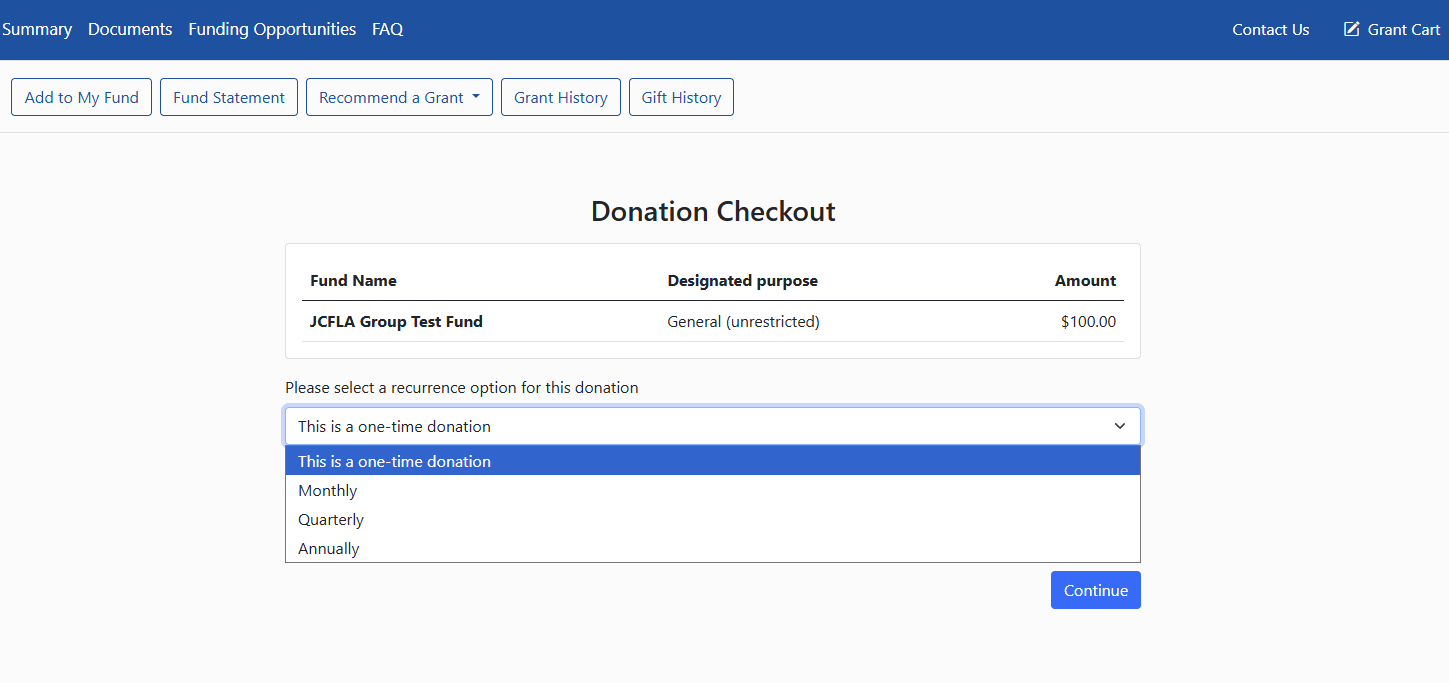
- On the next screen, select whether you would like to make a one-time contribution or a recurring contribution. Recurring contributions may be made monthly, quarterly, or annually.
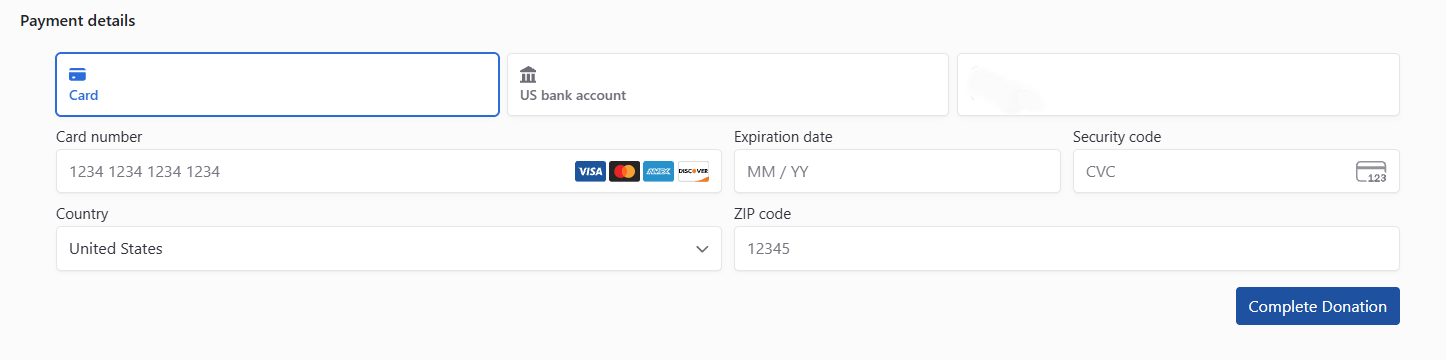
- After selecting continue, you will be prompted to choose Credit Card or US Bank Account (ACH) and enter your credit card or banking details.
For other ways to donate to your fund(s), please visit Ways to Donate.
Recommend a Grant
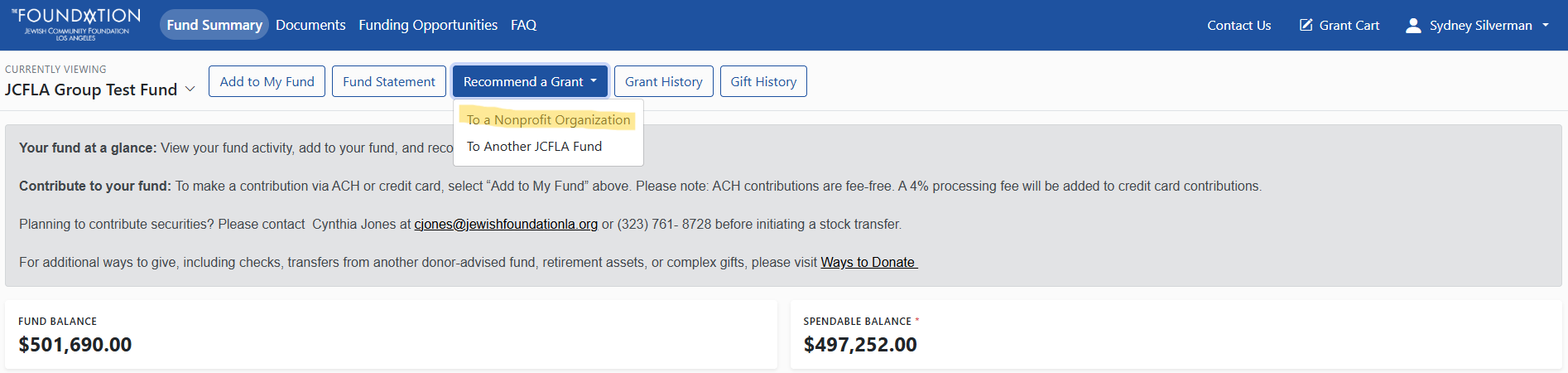
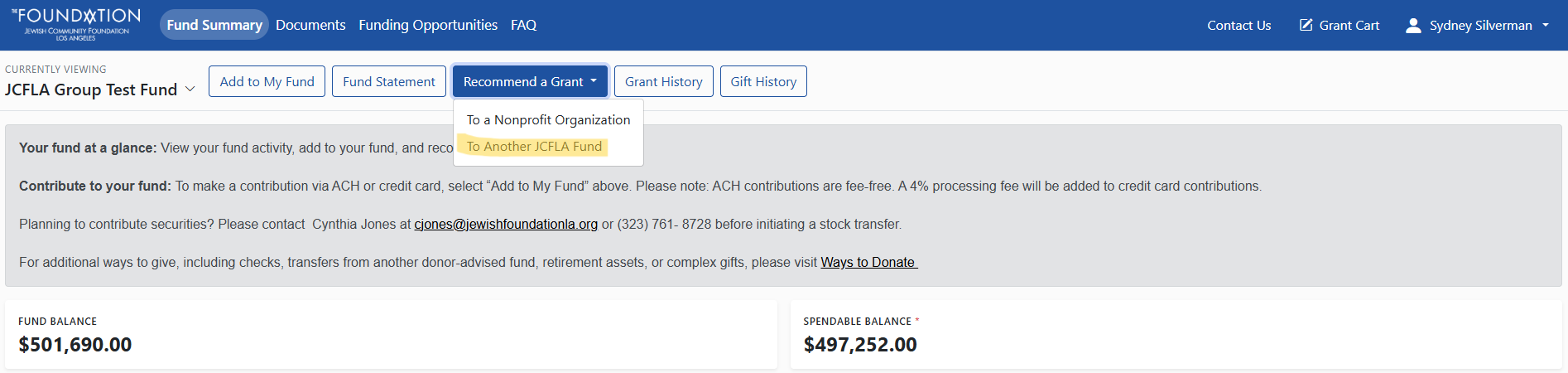
From the Fund Summary page, click Recommend a Grant. Before starting, confirm that the correct fund is selected in the upper left corner of the page.
Recommend a Grant to a Nonprofit Organization
Select To a Grantee Organization to recommend a grant to a nonprofit organization.
- Use the organization search field to select the nonprofit you would like to support. If you do not see the organization listed, you may add a new organization or search the IRS charity database. Any organization added to the Giving Portal is subject to review and approval by The Foundation.
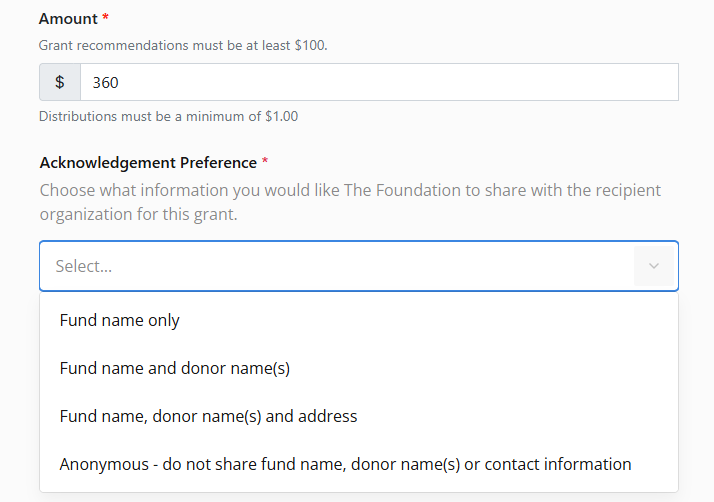
- Enter the grant amount. The minimum grant amount is $100.
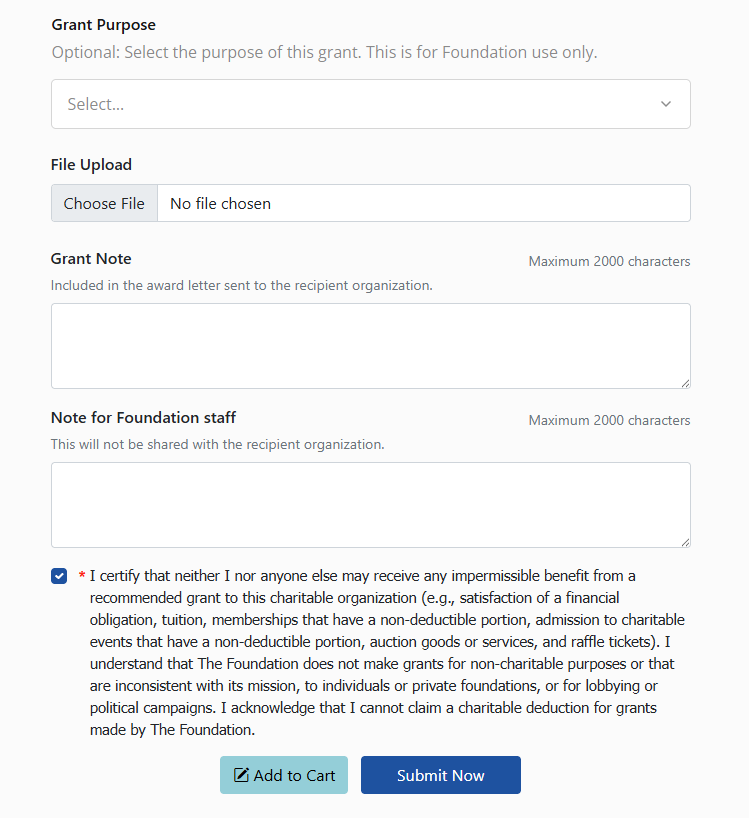
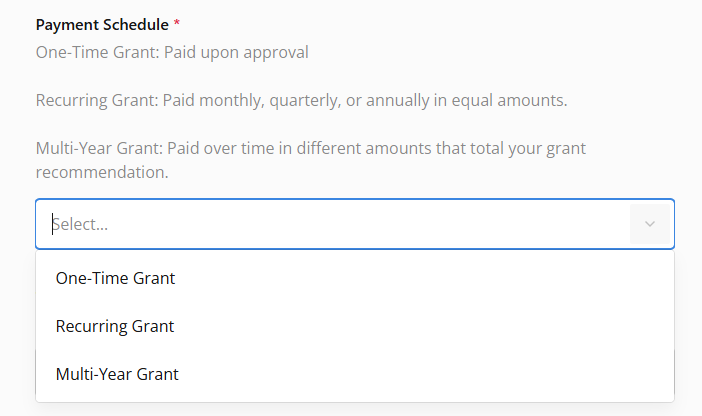
- You may also add optional details, including a dedication, acknowledgement preference, payment schedule, grant purpose, supporting documents, a grant note, or a note for Foundation staff.
- The Grant Note will be included on the award notification sent to the nonprofit organization. The Note for Foundation staff is for internal use only and will not be shared with the organization. Review your grant recommendation carefully before submitting. To submit one grant, click Submit Now. To submit multiple grant recommendations together, click Add to Cart and continue adding grants. You may review unsubmitted grant recommendations by clicking Grant Cart.
You will receive an email confirmation for each grant recommendation submitted.
Recommend a Grant to Another Fund (Interfund Transfer)
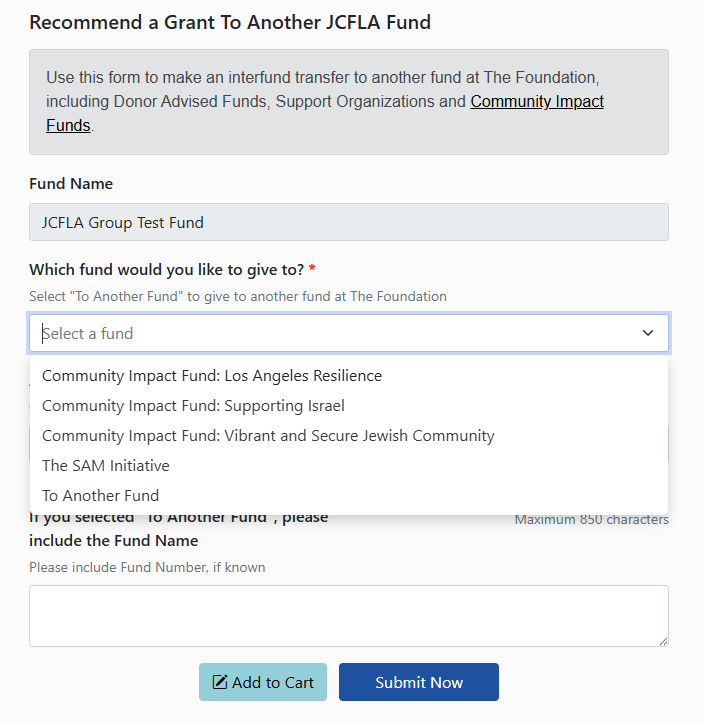
Select To Another Fund to recommend an interfund transfer from the fund you are viewing to another fund already held at The Foundation.
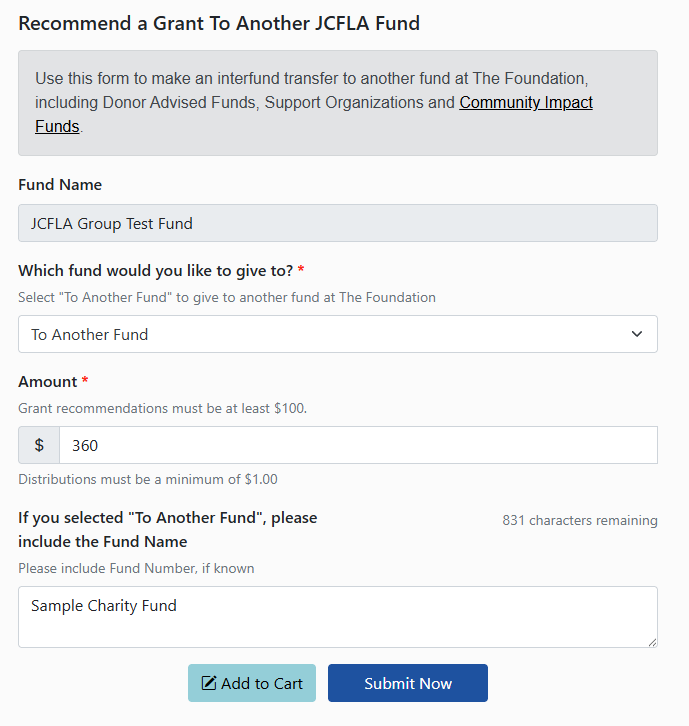
The Foundation’s Community Impact Funds and other collective giving opportunities will be listed in the dropdown menu. You may also select Another Fund. If you select Another Fund, please include the name of the JCF fund, fundholder name, or account number so we can identify the correct fund.
Enter the transfer amount, review the information carefully, and submit your recommendation.
You will receive an email confirmation after the recommendation is submitted.
View Fund Statement
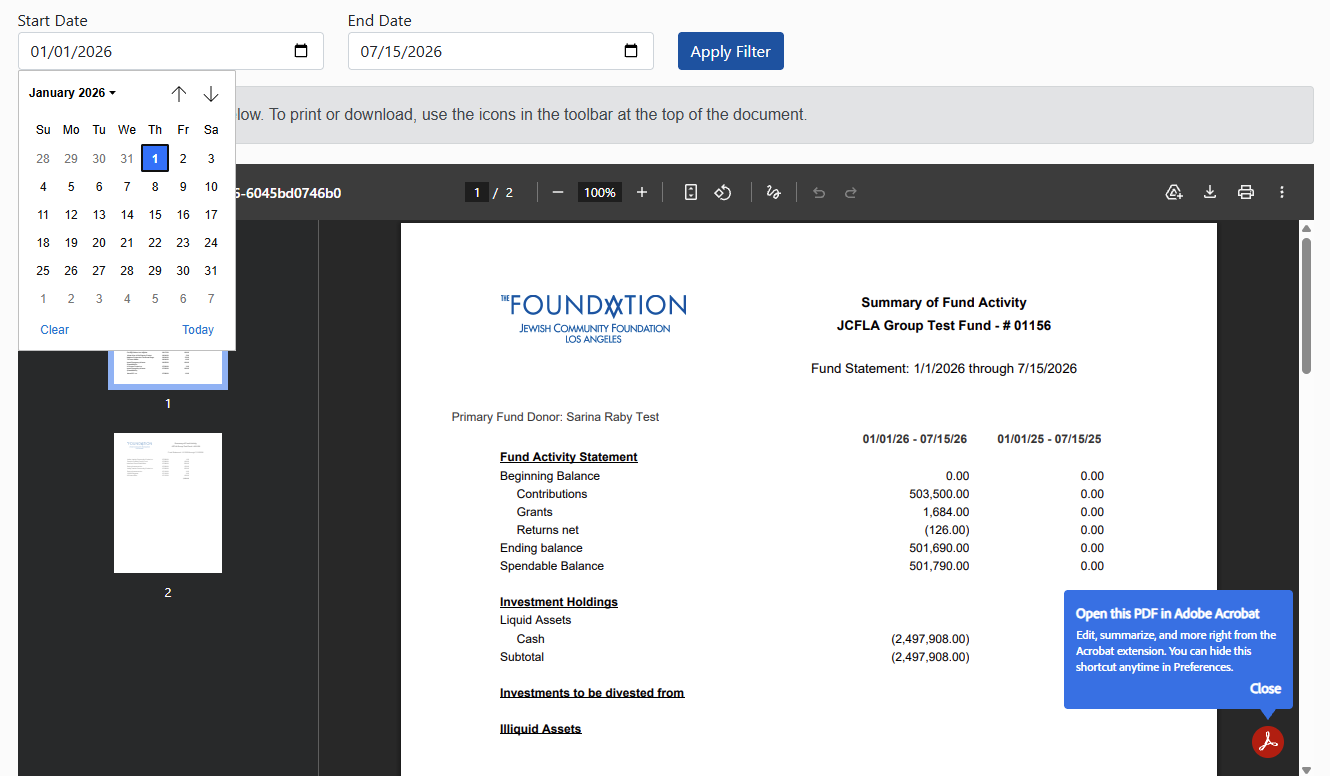
From the Fund Summary page, click Fund Statement.
Your fund statement preview will show year-to-date activity by default. To change the date range, enter the start and end dates, then click Apply Filter.
To print your fund statement for the selected date range, click the printer icon in the top right corner of the PDF preview. You may also download your fund statement to save for your records.
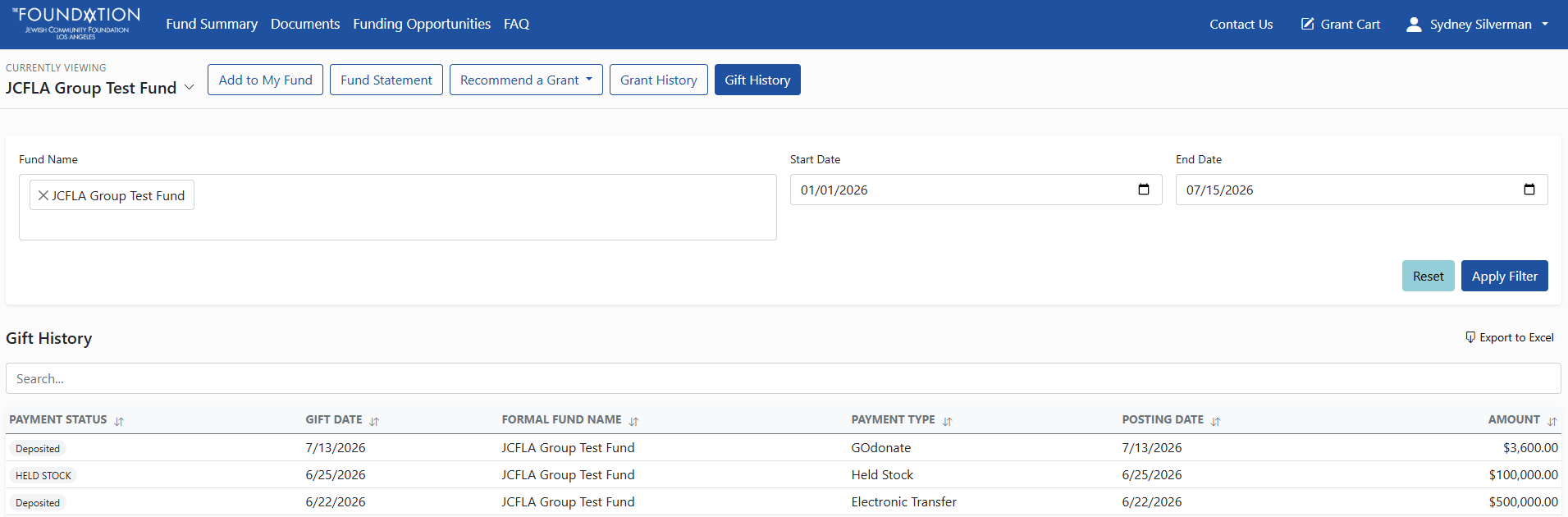
View Gift History
From the Fund Summary page, click Gift History.
Your gift history shows contributions credited to the fund currently selected. To change the date range, enter the start and end dates, then click Apply Filter. You may also export your gift history to Excel.
To view gift history for another fund, use the fund dropdown in the upper left corner of the Fund Summary page.
View Grant History
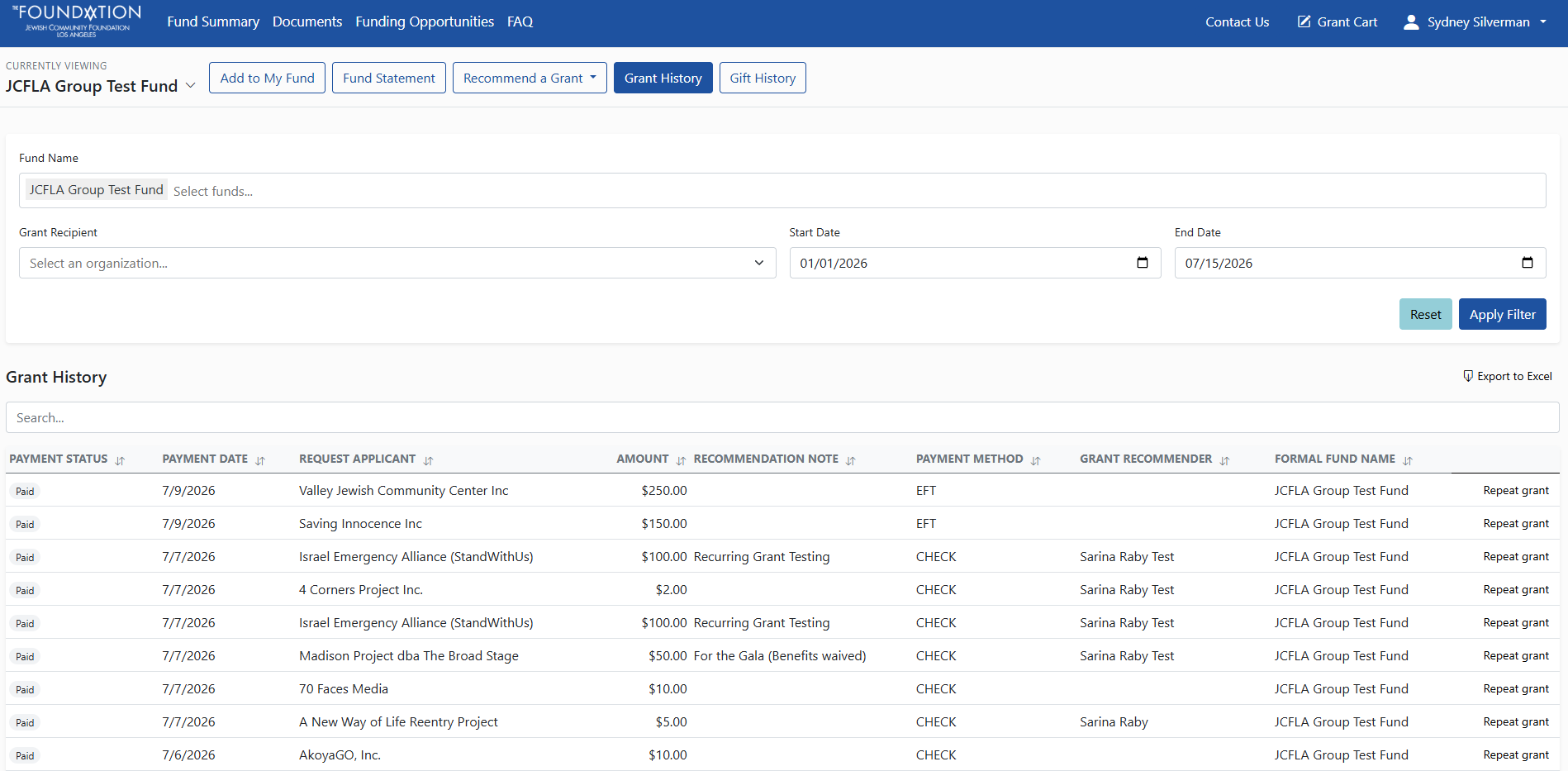
From the Fund Summary page, click Grant History.
Your grant history shows grants recommended from the fund currently selected. To change the date range, enter the start and end dates, then click Apply Filter. You may also export your grant history to Excel.
View Documents
From the top navigation bar, click Documents.
The Documents page includes two sections. JCFLA Documents are general documents from The Foundation. My Documents are documents related to your fund(s).
To download a document, click the file name. The document will download to your device so you can open or save it for your records.
To view grant history for another fund, use the fund dropdown in the upper left corner of the Fund Summary page.
View Funding Opportunities
From the top navigation bar, click Funding Opportunities.
This page includes grantmaking opportunities curated by The Foundation for clients’ consideration. Click an opportunity to learn more.
View or Update Profile
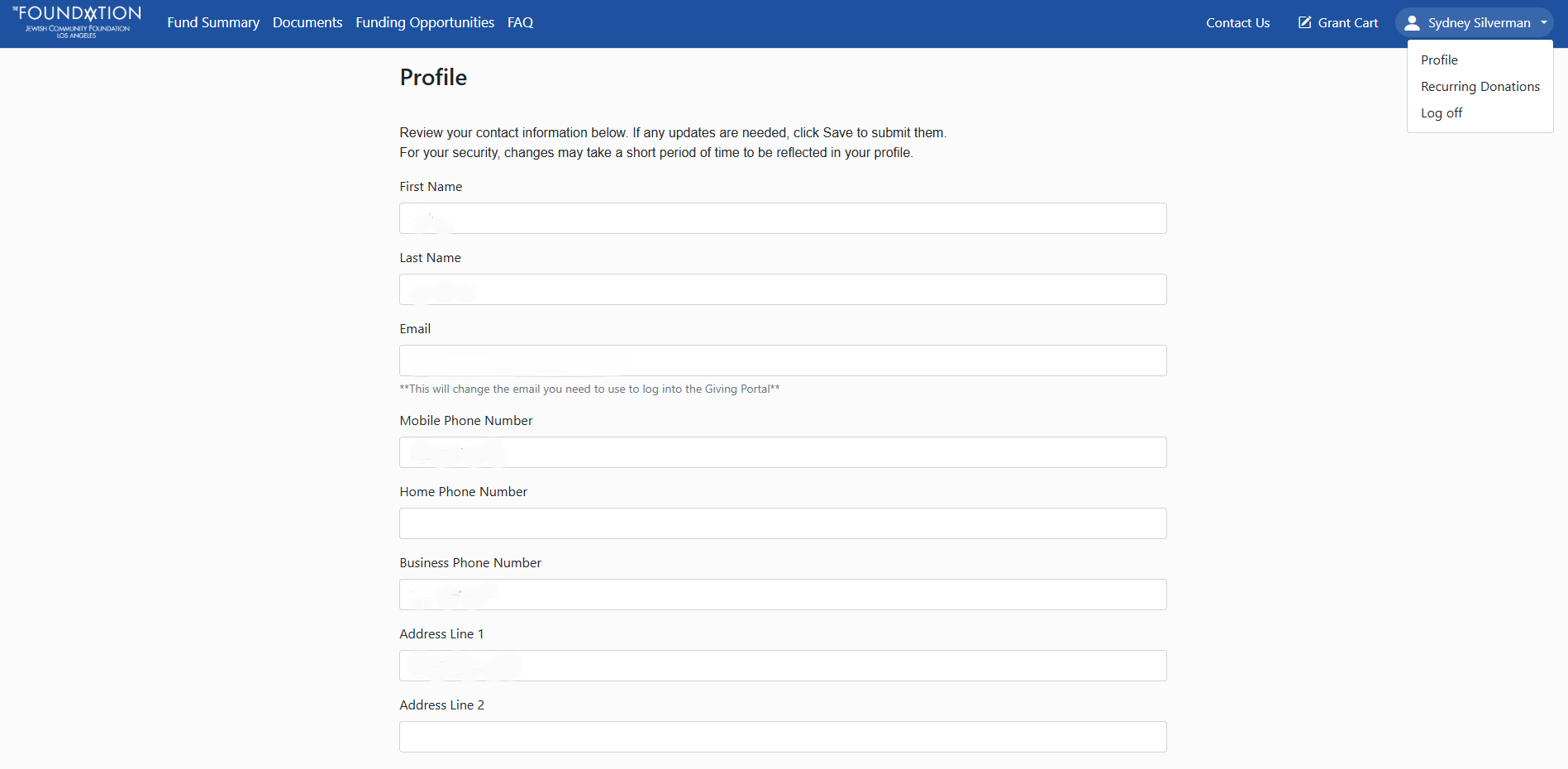
To view your profile, click your name in the upper right corner of the Giving Portal.
You may review your profile information and submit updates. For security reasons, profile changes must be reviewed and approved by The Foundation before they take effect.
Please note that the email address in your profile is tied to the primary contact information we have on file for you. Updating your email address will change the email used for your Giving Portal access and other Foundation communications.
We’re here for you
Our team is here to help — by phone or email, whenever you need us.
Questions?
Jessica Duffaut
JDuffaut@jewishfoundationla.org
(323) 761-8713